

Microsoft Teams and SharePoint Integration: 7 Powerful Collaboration Gains
How Microsoft Teams and SharePoint Integration Works
Microsoft Teams and SharePoint integration is the core of modern Microsoft 365 collaboration. These two platforms work together to manage conversations, files, permissions, and structured content across your digital workplace.
If you’ve ever asked, how does Microsoft Teams work with SharePoint for collaboration? This guide explains exactly what gets created, where files live, how permissions are enforced, and how admins should manage both platforms together.
Modern workplaces thrive on collaboration, and Microsoft has built Teams and SharePoint to work hand-in-hand toward that goal. If you’ve ever asked yourself, How can I integrate SharePoint with Microsoft Teams for better collaboration?, the answer lies in understanding how these two platforms are designed to complement each other behind the scenes.
This article breaks down how Teams and SharePoint are connected, what gets created when you spin up teams and channels, and where files, permissions, and settings actually live.
Microsoft Teams and SharePoint Integration Architecture
Although they feel like separate apps, Teams and SharePoint are deeply intertwined.

Microsoft Teams acts as the collaboration hub. It’s where conversations happen, meetings are run, and people work together around a shared goal.
- Conversations
- Meetings
- Channels
- Day-to-day teamwork
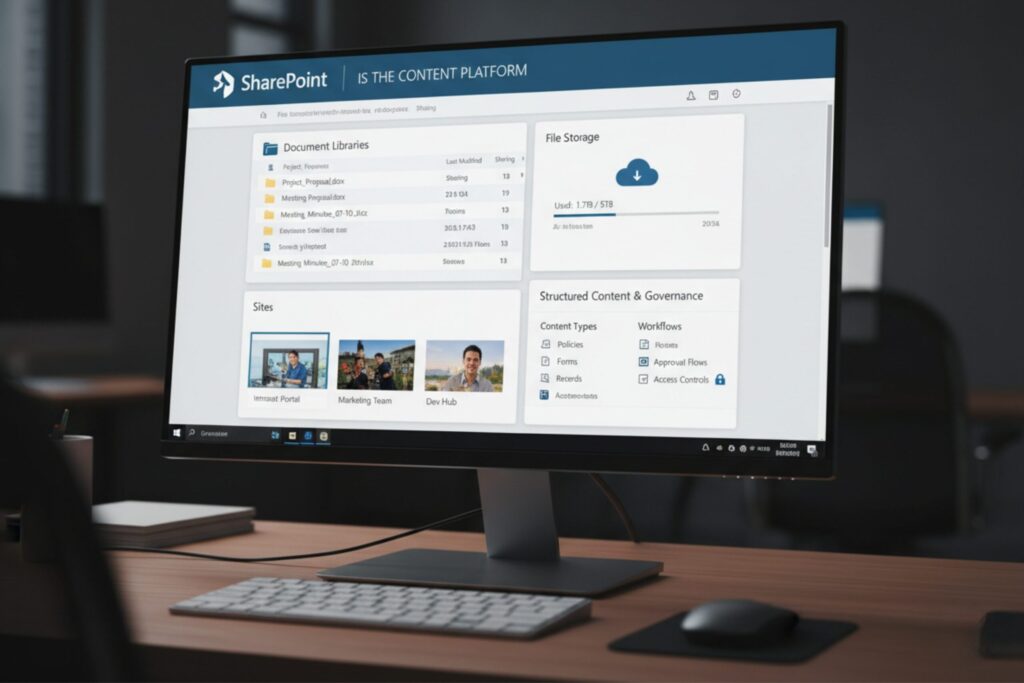
SharePoint is the foundation for content. It handles websites, document libraries, file storage, and structured information.
- Document libraries
- File storage
- Sites
- Structured content and governance
When users upload files in Teams, they are actually stored in SharePoint document libraries.
Core Building Blocks You Should Know
To understand the integration, it helps to know the main components and how they fit together.
Teams and Teams Membership
A team is a workspace in Microsoft Teams where members collaborate. Teams can be:
- Public, allowing anyone in the organization to join freely.
- Private, requiring an invitation from a team owner.
Regardless of privacy, teams support the same types of channels and collaboration features.
Microsoft Teams and SharePoint Integration for Files and Permissions
Channels divide a team into focused areas of work. There are three types:
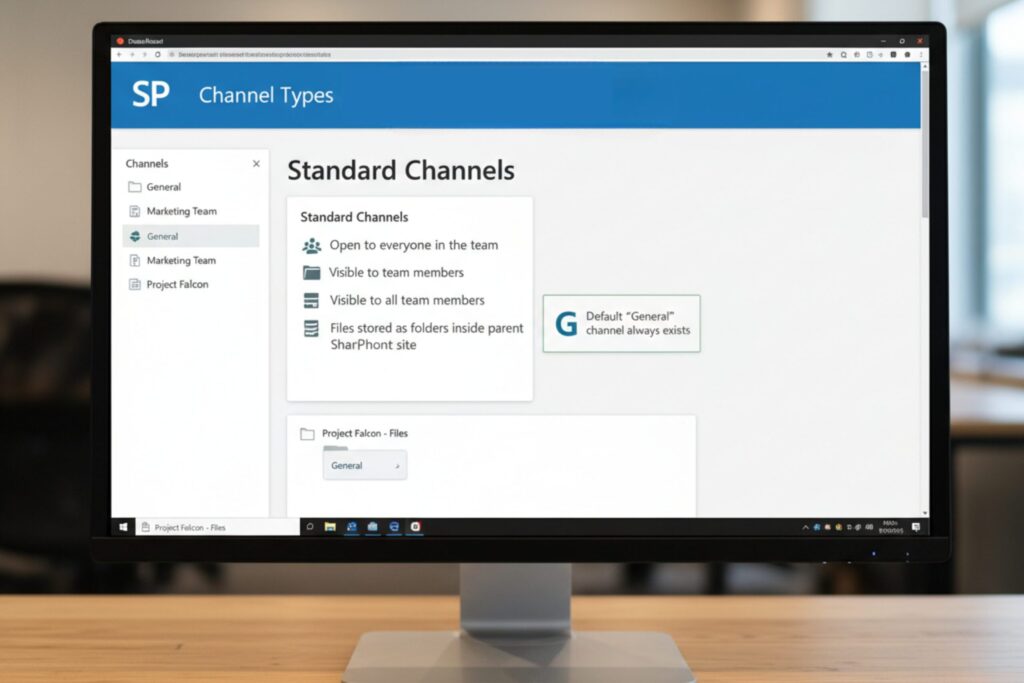
Standard channels
Open to everyone in the team. Every team includes a “General” channel by default, and at least one standard channel must always exist.
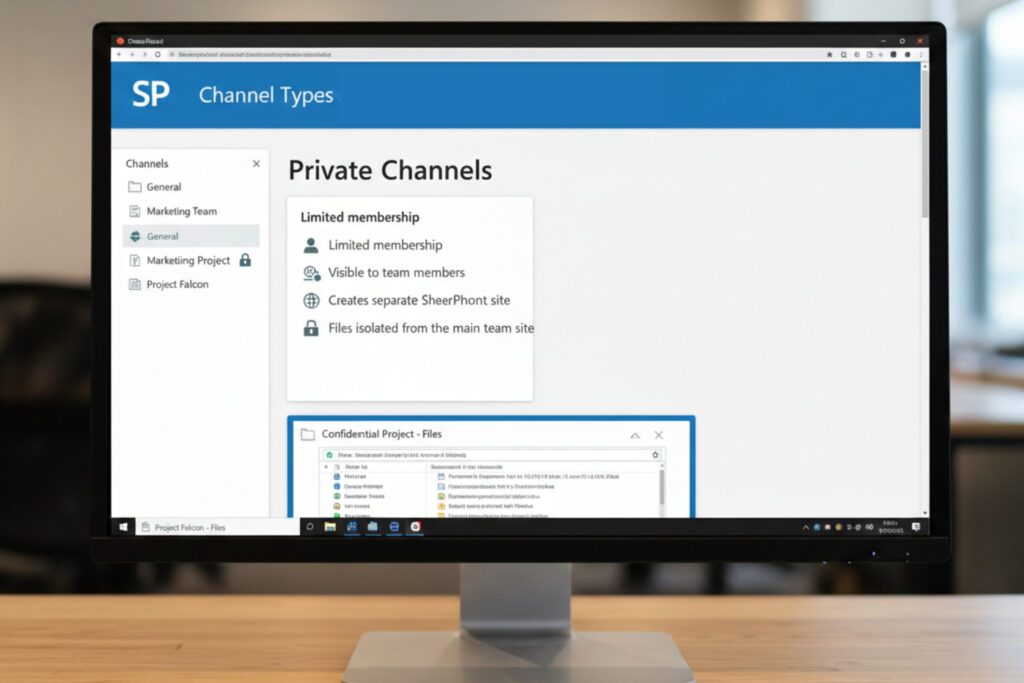
Private channels
Limited to a subset of team members for confidential discussions and files.
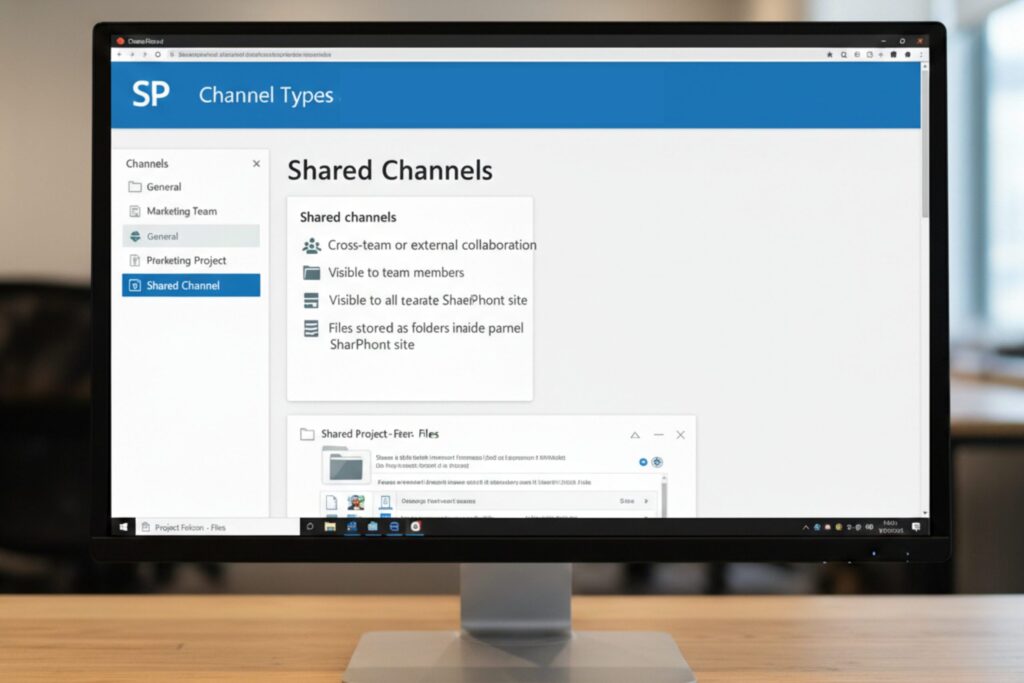
Shared channels
Designed for cross-team or external collaboration, allowing people to participate without joining the full team.
Each channel type affects how SharePoint storage is created and secured.
SharePoint Sites Automatically Created by Teams
Microsoft Teams and SharePoint integration automatically provisions storage.
- Parent SharePoint site
Created automatically when a new team is created. This site stores files for all standard channels in separate folders within a single document library. - Channel sites
Created only for private and shared channels. Each of these channels gets its own dedicated SharePoint site, accessible only to the members of that channel.
This design keeps permissions clean and ensures private or shared conversations don’t accidentally expose files to the wrong audience.
Microsoft 365 Groups and Entra ID Control Access
At the center of this ecosystem is the Microsoft 365 group. Every team is linked to one, and that group:
- Stores the membership list
- Controls access to the team’s SharePoint parent site
- Connects users to other Microsoft 365 services
These groups, along with user accounts, are managed through Microsoft Entra ID (formerly Azure Active Directory). Entra ID allows administrators to apply policies such as multi-factor authentication and conditional access, ensuring security stays consistent across Teams and SharePoint.
Admins can enforce:
- MFA
- Conditional access
- Guest controls
Managing Microsoft Teams and SharePoint Integration Settings
Teams and SharePoint become linked in several common scenarios:
- Creating a brand-new team automatically generates a new SharePoint site.
- Enabling Teams on an existing Microsoft 365 group connects the team to that group’s SharePoint site.
- Adding Teams to an existing SharePoint site links the site to a newly created team.
- Creating private or shared channels spins up separate SharePoint sites just for those channels.
Whenever you upload or edit files in the Files tab of a channel, you’re directly working with content stored in SharePoint even if you never open SharePoint itself.
Practical Teams and SharePoint Collaboration Example
Imagine a project team with multiple standard channels for planning, delivery, and reporting, plus a private channel for competitive analysis.
- All standard channels store their files as folders in the team’s main SharePoint site.
- The private channel has its own SharePoint site, completely isolated from the rest of the team.
- Permissions automatically align with channel membership, reducing the risk of oversharing.
This structure keeps collaboration organized without forcing users to manually manage storage or access.
Sharing and Permissions in Teams SharePoint Integration
Different channel types handle sharing in different ways:
Standard channels
Use a single SharePoint site. Team members are automatically granted access, and sharing is best managed through Teams for simplicity.
- Same SharePoint site
- Access = team membership
- Sharing best controlled via Teams
Private channels
Have dedicated SharePoint sites that can’t be shared independently. Only channel members can access them.
- Separate SharePoint site
- Only channel members can access
- No independent site sharing
Shared channels
Also have their own SharePoint sites, designed to support collaboration with external participants who are part of the channel.
- Separate SharePoint site
- Supports external participants
- Governed by org sharing policy
File and folder sharing can still use shareable links, depending on organizational sharing policies.
Where Settings Should Be Managed
Teams-connected SharePoint sites don’t behave exactly like standalone SharePoint sites.
- Permissions are primarily controlled through Teams, even though they’re visible in SharePoint.
- Some settings, such as site quotas, default sharing links, and guest access expiration, are managed through the SharePoint admin center.
- Sensitivity labels stay in sync between Teams and the connected SharePoint sites, ensuring compliance policies apply consistently.
For channel sites, many settings are inherited from the parent site and can’t be changed independently. Sensitivity labels sync between Teams and SharePoint automatically.
Check our SharePoint Stability Hub
Final Thoughts on Microsoft Teams and SharePoint Integration
Microsoft Teams and SharePoint aren’t just integrated, they’re co-dependent. Teams provides the collaborative experience users love, while SharePoint delivers the structure, storage, and governance that organizations rely on. Understanding how they connect helps you design better workspaces, avoid permission headaches, and get the most value out of Microsoft 365.
Once you see how the pieces fit together, the integration stops feeling complex and starts feeling intentional.
Frequently Asked Questions: Microsoft Teams and SharePoint Integration
How does Microsoft Teams and SharePoint integration work?
Microsoft Teams and SharePoint integration works by using SharePoint as the file storage and content management layer behind every Team. Standard channel files are stored in the parent SharePoint site, while private and shared channels create separate SharePoint sites with isolated permissions.
Where are files stored in Microsoft Teams and SharePoint integration?
In Microsoft Teams and SharePoint integration, files uploaded to standard channels are stored in folders inside the Team’s SharePoint document library. Files from private and shared channels are stored in separate SharePoint sites created specifically for those channels.
Does every Team create a SharePoint site?
Yes. Microsoft Teams and SharePoint integration automatically creates a SharePoint site whenever a new Team is created. This SharePoint site manages document libraries, folders, and file permissions linked to that Team.
How are permissions handled in Microsoft Teams and SharePoint integration?
Permissions in Microsoft Teams and SharePoint integration are primarily controlled through Team and channel membership. SharePoint inherits these permissions automatically, reducing manual access configuration and lowering oversharing risk.
Can you use SharePoint without Teams integration?
Yes, SharePoint can operate independently, but Microsoft Teams and SharePoint integration provides a more structured collaboration layer by connecting chat, meetings, channels, and file storage into one governed workspace.
Do private channels create separate SharePoint storage?
Yes. In Microsoft Teams and SharePoint integration, every private and shared channel creates its own dedicated SharePoint site. This ensures file access is limited only to channel members.