

Hi! We are thrilled to share that SharePoint Advanced Recycling Bin is...
Read MoreA practical replacement pattern for Edit Control Block actions after SharePoint Add-Ins retire
Creating SharePoint ECB Custom Actions Without the Add-In Model
Microsoft is retiring the SharePoint Add-In model, which means older approaches for adding custom actions into the Edit Control Block (ECB) need a replacement. One lightweight way to keep this working is to create the custom actions directly on the SharePoint web by using the SP browser extension and running PnP JS in the console.
In this post I’ll show the approach I use: install the SP Chrome extension, open the PnP JS console, and create the ECB custom actions directly against the current web. This avoids the deprecated add-in packaging model while still giving you a practical way to register menu actions for specific file types.
SharePoint ECB custom actions can still work without the old Add-In model. This guide shows a practical way to create Edit Control Block actions using PnP JS, the SP Chrome extension, and web-level user custom actions.
Why SharePoint ECB custom actions still matter
A lot of older SharePoint solutions used the add-in model to provision ECB menu entries. Once the add-in model is gone, those provisioning steps need another path. For simple custom actions, it is often enough to create the same user custom actions directly on the web.
This approach is especially useful when you already have an external application endpoint and only need SharePoint to surface a menu item for selected file types.
Microsoft has officially announced the retirement of the SharePoint Add-In model, meaning older provisioning patterns for ECB menu actions must be replaced with modern approaches. See the official guidance here:
What you need for this approach
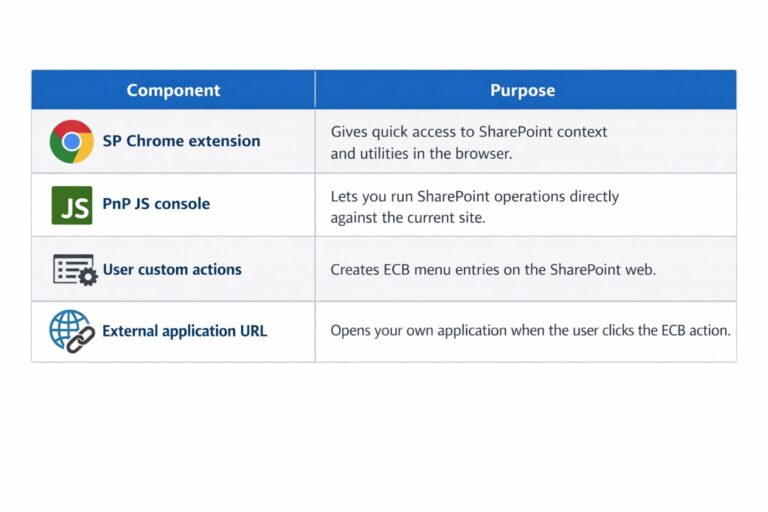
SharePoint ECB custom actions script example
Below is the script I run in the PnP JS console. In this example, the ECB entry is shown as “Create Document” for both xlsx and xlsm files.
This approach uses web-level user custom actions supported by the PnP JS library. Full documentation is available here.
/* Hit ‘ctrl + d’ or ‘cmd + d’ to run the code */
/* Check output from browser console */
import { spfi, SPBrowser } from “@pnp/sp/presets/all”;
import “@pnp/sp/webs”;
import “@pnp/sp/user-custom-actions”;
const sp = spfi().using(
SPBrowser({ baseUrl: (window as any)._spPageContextInfo.webAbsoluteUrl })
);
(async () => {
const web = await sp.web.select(“Title”)();
console.log(`Web title: ${web.Title}`);
const baseId = “sppro.CustomAction.CreateDocument”;
const title = “Create Document”;
const url = “<your api>/merge/createDocument?Id={ItemId}”;
// optional: remove old versions first
const existing = await sp.web.userCustomActions();
for (const action of existing) {
if (
action.Name === `${baseId}.xlsx` ||
action.Name === `${baseId}.xlsm`
) {
await sp.web.userCustomActions.getById(action.Id).delete();
console.log(`Deleted existing action: ${action.Name}`);
}
}
await sp.web.userCustomActions.add({
Name: `${baseId}.xlsx`,
Title: title,
Location: “EditControlBlock”,
RegistrationType: 4, // FileType
RegistrationId: “xlsx”,
Sequence: 1,
Url: url
});
await sp.web.userCustomActions.add({
Name: `${baseId}.xlsm`,
Title: title,
Location: “EditControlBlock”,
RegistrationType: 4, // FileType
RegistrationId: “xlsm”,
Sequence: 1,
Url: url
});
console.log(“Custom actions created.”);
})().catch(console.error);
What the script is doing
The script connects to the current SharePoint web by using the browser page context, reads the existing custom actions, removes any old versions for the same action name, and then creates two new ECB entries.
Both actions are registered at the EditControlBlock location, which is the menu shown when users open the item menu in a document library. The registration type is FileType, so the action is scoped only to the file extensions you specify.
Why delete existing actions first
When you are iterating on custom actions, duplicate entries are a common problem. Removing the previous versions first keeps the result predictable and ensures that the latest URL, label, and sequence are the ones SharePoint uses.
Important settings to understand
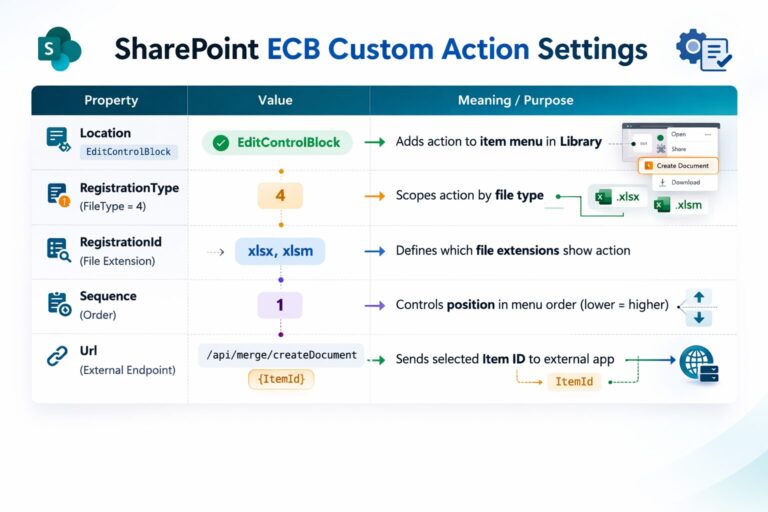
Practical notes before deployment
This method is intentionally simple. It is a good fit when you need to recreate a small number of custom ECB actions without rebuilding the whole provisioning model.
Because the URL is external, make sure the target application can handle the incoming item id and resolve the selected document correctly.
If you need to support more file types, you can repeat the same add call with different RegistrationId values.
If you are moving away from older code and naming, this is also a good point to standardise action names, labels, and URLs so they are easier to maintain going forward.
Conclusion
If you previously relied on the SharePoint add-in model to create ECB custom actions, you do not need to lose that functionality when the add-in model is retired. Creating web-level user custom actions through the PnP JS console is a practical replacement for many scenarios.
In a future post I’ll write about other migration patterns that help replace old SharePoint add-in features with simpler modern alternatives.
If you’re modernising legacy SharePoint solutions, this pattern can be used alongside broader migration strategies offered by SharePointPro.
Frequently Asked Questions
Can SharePoint ECB custom actions still be created after the Add-In model retirement?
Yes. SharePoint ECB custom actions can still be created using web-level user custom actions instead of provisioning them through the retired SharePoint Add-In model. Tools like PnP JS allow developers to register these actions directly on the current SharePoint web.
What is EditControlBlock in SharePoint?
EditControlBlock (ECB) is the context menu shown when users click the three-dot menu on a document or list item inside a SharePoint library. Custom actions added to this location appear as additional menu commands.
Why use RegistrationType 4 in SharePoint user custom actions?
RegistrationType 4 scopes the custom action by file type. This ensures the menu entry only appears for specific file extensions such as xlsx or xlsm.
What does RegistrationId control in a SharePoint custom action?
RegistrationId determines which file extensions trigger the ECB menu action. For example, setting the value to xlsx means the custom action will only appear for Excel .xlsx files.
Why should existing custom actions be deleted before creating new ones?
Deleting existing actions prevents duplicate ECB menu entries and ensures SharePoint uses the latest configuration, URL, and sequence order.
When should this method be used instead of SharePoint Framework?
This method works best for simple menu integrations where you only need to trigger an external application or API. For more complex UI customizations, SharePoint Framework (SPFx) is typically the recommended modern development model.


Common Microsoft 365 Security Risks Businesses Overlook
Microsoft 365 Security Risks Every Business Should Be Aware Of...
Read More
Microsoft 365 Security Audit Checklist
Microsoft 365 Security Audit Checklist for Brisbane & Gold Coast...
Read More

Creating SharePoint ECB Custom Actions Without the Add-In Model
A practical replacement pattern for Edit Control Block actions after...
Read More