
SharePoint PDF Opening in Browser Fix (2026 Step-by-Step Guide)
Why SharePoint PDFs Open in the Browser by Default
SharePoint PDF opening in browser fix is one of the most searched SharePoint behavior issues in Microsoft 365 today. Many environments default to opening PDFs inside the browser viewer instead of downloading, which breaks compliance workflows, offline review, digital signing, and document control standards. This step-by-step 2026 guide shows the exact settings that correct the behavior fast.
This 2026 guide shows the exact settings and working fixes to control how PDFs open in SharePoint Online, using library settings, link behavior, and browser overrides.
No guesswork. Just working methods.
Why SharePoint Opens PDFs in the Browser by Default
Microsoft does this because:
- Faster preview experience
- Inline commenting support
- Reduced app switching
- Better mobile behavior
- Consistent M365 UI experience
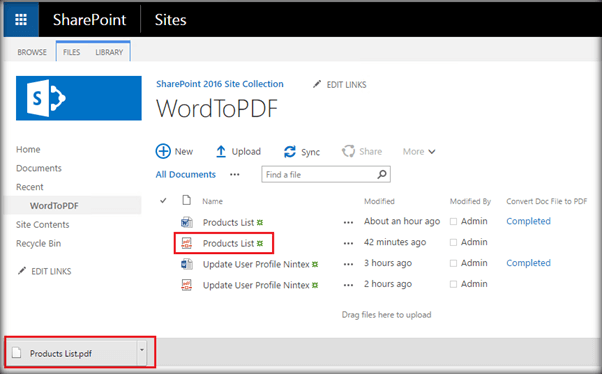
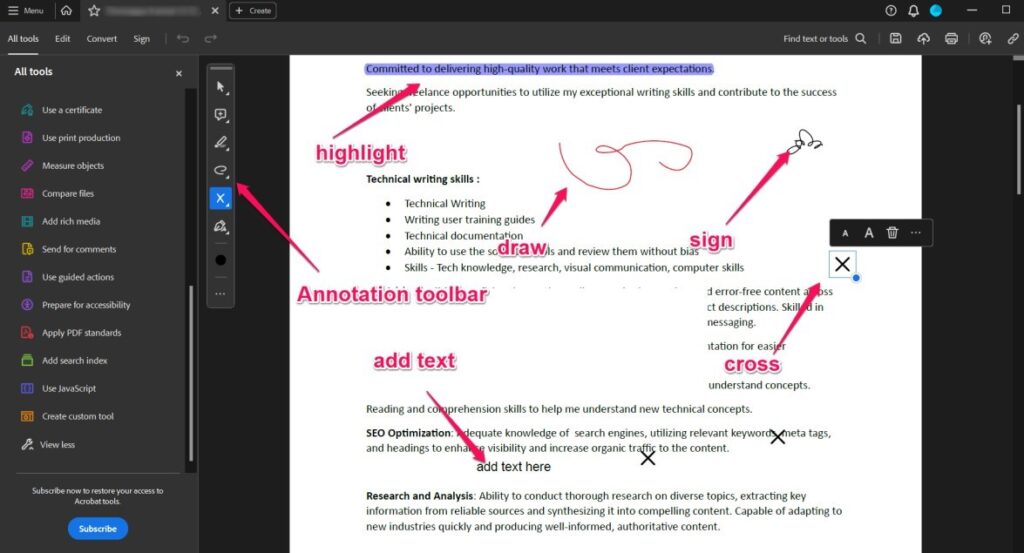
But in real business environments, this causes problems:
- Compliance review requires download
- PDF editing tools need local files
- Digital signing fails in browser view
- Automation workflows expect file download
- Staff think the file is “read-only”
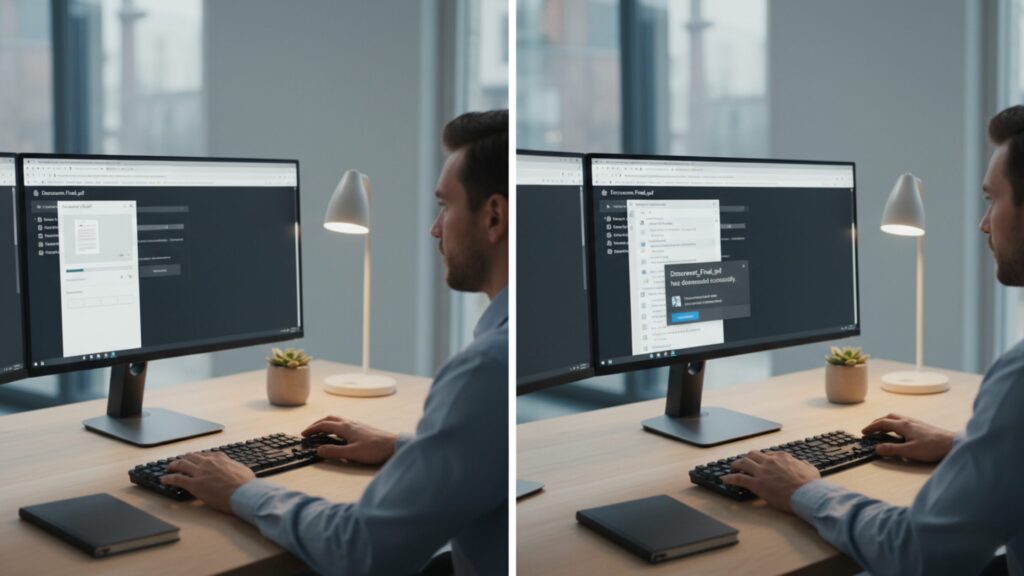
That’s where the SharePoint PDF opening in browser fix comes in.
This behavior is common in modern Microsoft 365 environments where document libraries are not fully governed, which is why structured SharePoint Services and configuration reviews matter for business document control.
How to Fix SharePoint PDF Opening in Browser (Library Setting Method)
This is the most reliable fix when you control the document library.
Step-by-Step:
- Open your SharePoint document library
- Click Settings (⚙️)
- Choose Library Settings
- Click Advanced Settings
- Find: Opening Documents in the Browser
- Select:
Open in the client application - Save changes
Result:
PDF files now download or open via desktop app instead of browser viewer.
Microsoft documents this library behavior control in their official SharePoint library configuration guidance.
SharePoint PDF Still Opening in Browser? Check File Link Type
Not all SharePoint links behave the same.
Different link formats trigger different behaviors:
| Link Type | Behavior |
| Direct file URL | Often downloads |
| Sharing link | Often browser viewer |
| Embedded preview link | Always viewer |
| Teams file link | Viewer first |
Fix:
Use direct file path links when sharing internally instead of preview links.
Browser Settings That Override SharePoint PDF Behavior
Even after applying the SharePoint PDF opening in browser fix, browsers may still override behavior.
Chrome Fix:
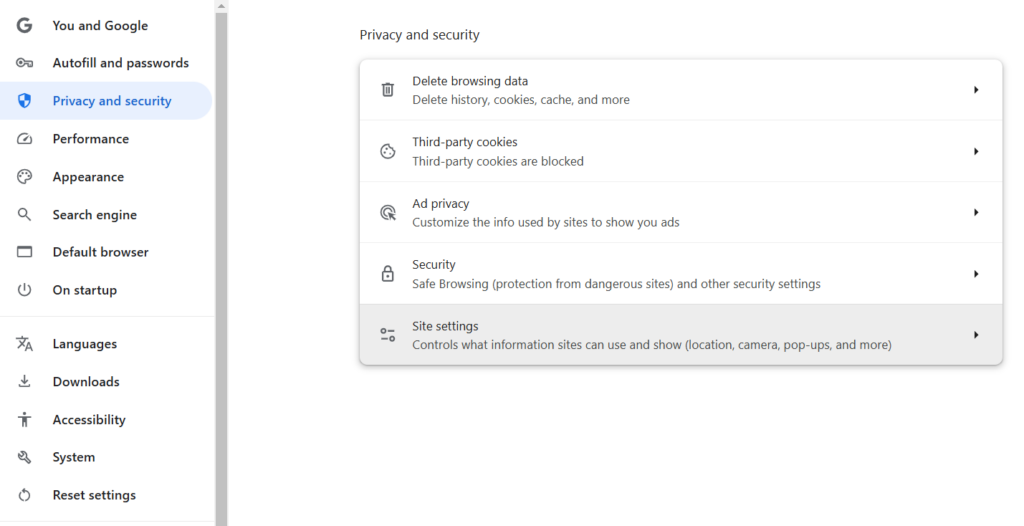
Chrome setting to download PDFs instead of opening in browser viewer.
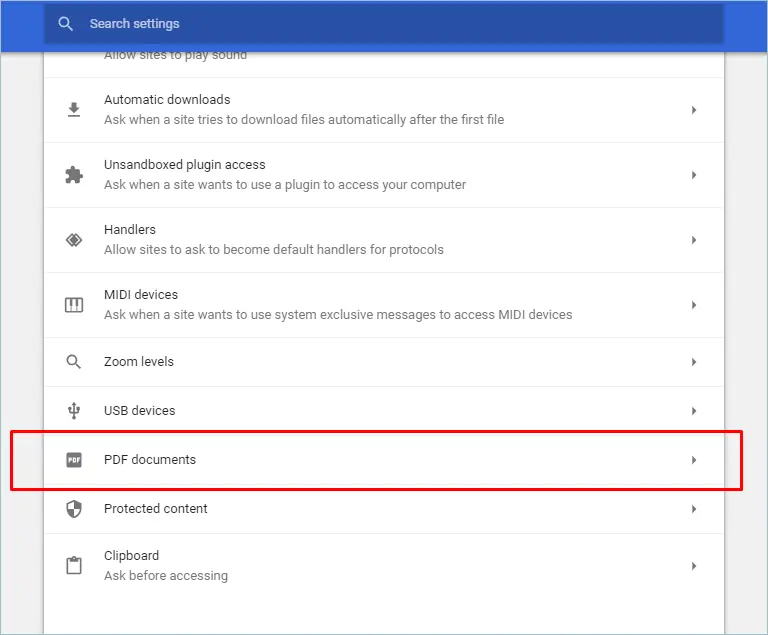
Settings → Privacy & Security → Site Settings → PDF
Turn ON:
Download PDFs instead of opening automatically
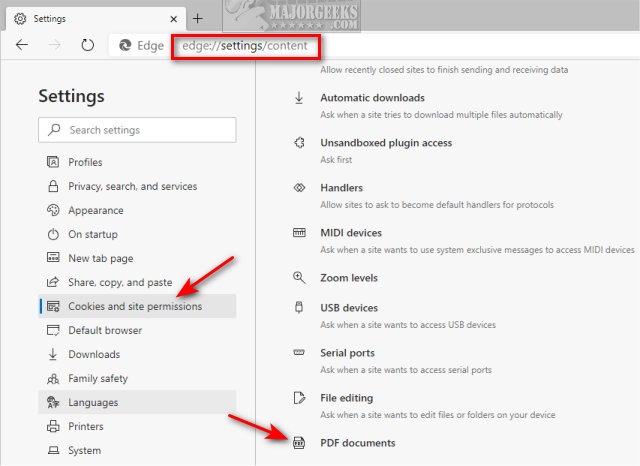
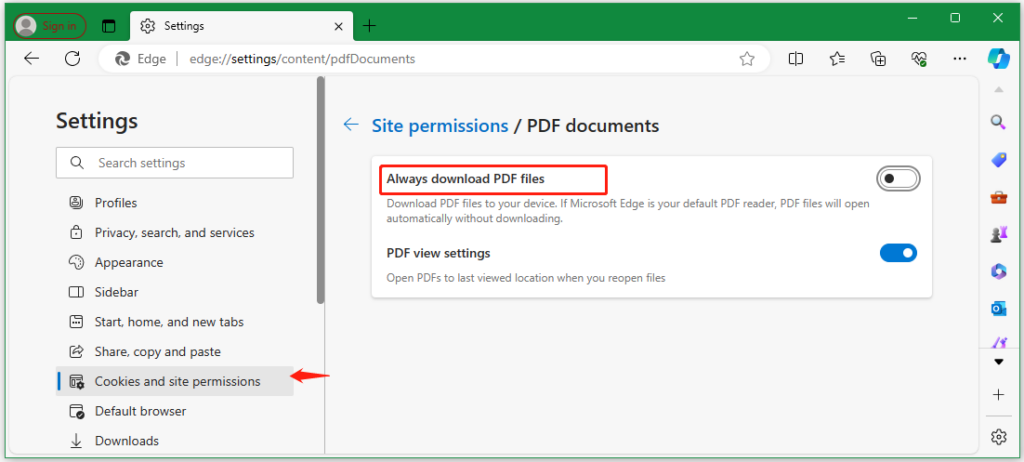
Edge Fix
Settings → Cookies & Site Permissions → PDF Documents
Enable:
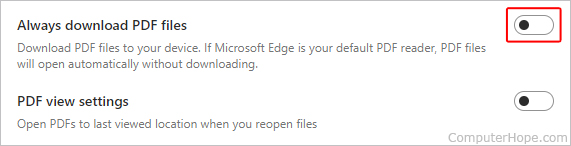
Always download PDF files
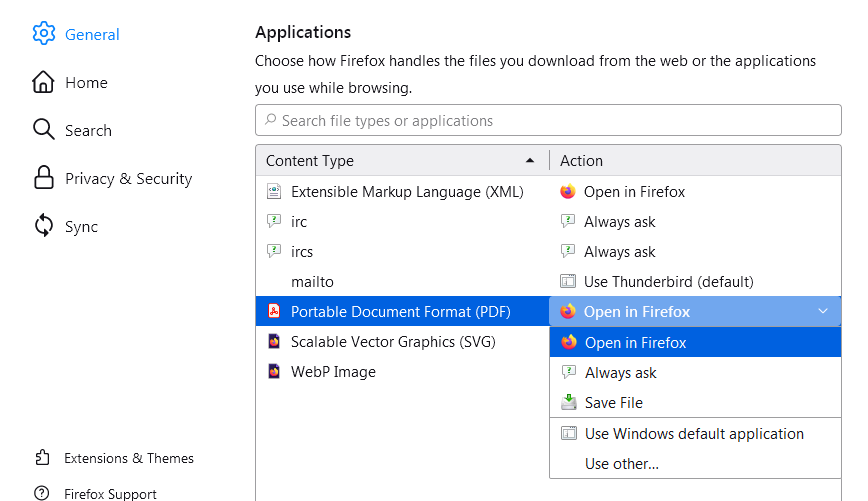
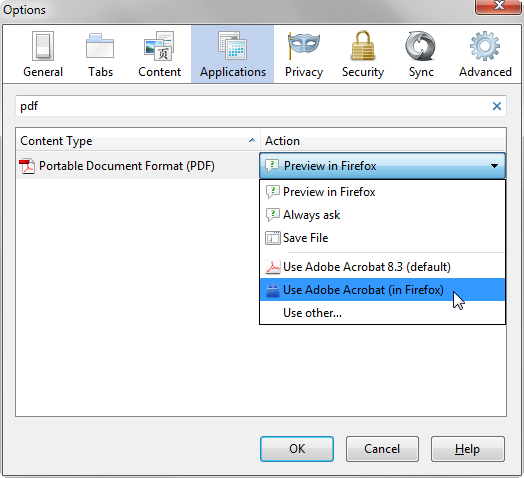
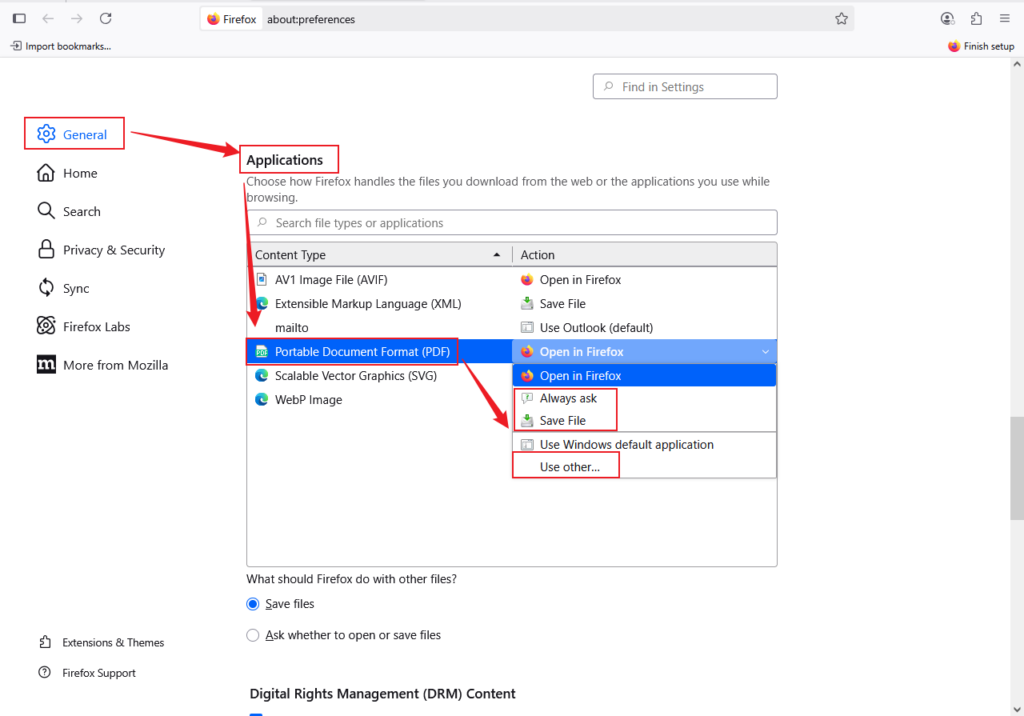
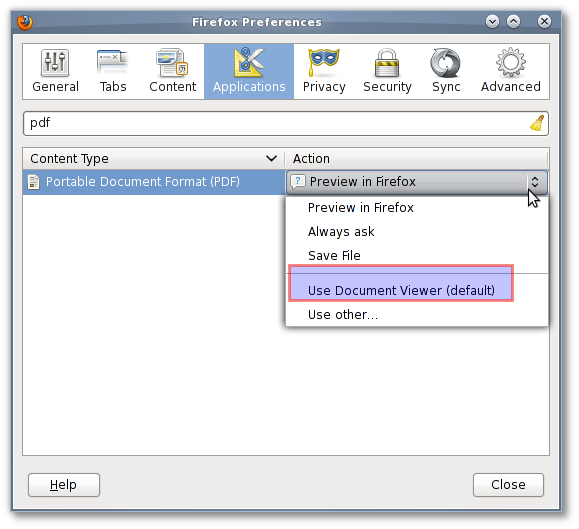
Firefox Fix
Settings → Applications → PDF
Change action to:
Always Ask or Save File
SharePoint Modern Experience vs Classic Experience Difference
This matters in 2026 environments.
Modern SharePoint:
- Uses Microsoft file viewer
- Strong browser preview bias
- More override layers
Classic SharePoint:
- Respects library open settings more strictly
If your tenant mixes modern and classic sites, PDF open behavior may differ across libraries — not a bug, just architecture.
When You Should NOT Force PDF Download
Do not apply the SharePoint PDF opening in browser fix if your users rely on:
- inline preview
- quick reference libraries
- policy libraries
- mobile-first teams
- training document hubs
In those cases, browser preview improves speed and usability.
Best practice = apply per-library, not tenant-wide.
Best Practice: Controlled PDF Behavior Strategy (2026)
Smart environments don’t use one rule everywhere.
Use this split model:
Preview Mode Libraries
- SOP libraries
- Policy docs
- Training resources
Download Mode Libraries
- Legal contracts
- Compliance evidence
- Engineering markups
- Signed forms
- Audit exports
This keeps user experience and compliance aligned. 🎯
If your PDF behavior differs across libraries, Teams, and OneDrive, it usually points to deeper configuration drift — this is typically uncovered during a structured Microsoft 365 tenant health check.
Common SharePoint PDF Viewer Problems (Quick Fix Table)
| Problem | Fix |
| PDF opens read-only | Download locally |
| Sign button missing | Open in desktop app |
| Annotations missing | Disable viewer |
| Download blocked | Check DLP policy |
| Wrong behavior per user | Browser override |
FAQ — SharePoint PDF Opening in Browser Fix
Can I force SharePoint PDFs to always download?
Yes — library advanced settings → open in client application.
Does this work in SharePoint Online?
Yes — modern libraries support this setting.
Does Teams follow this rule?
Teams file links may still preview first.
Does OneDrive behave the same?
Similar viewer logic — separate settings.
Is this a tenant setting?
No — library level.
Does this affect Word and Excel?
Yes — same open behavior rule.
Can permissions override this?
Yes — restricted download policies can block.
Is this a security risk?
No — it’s a viewing behavior setting.